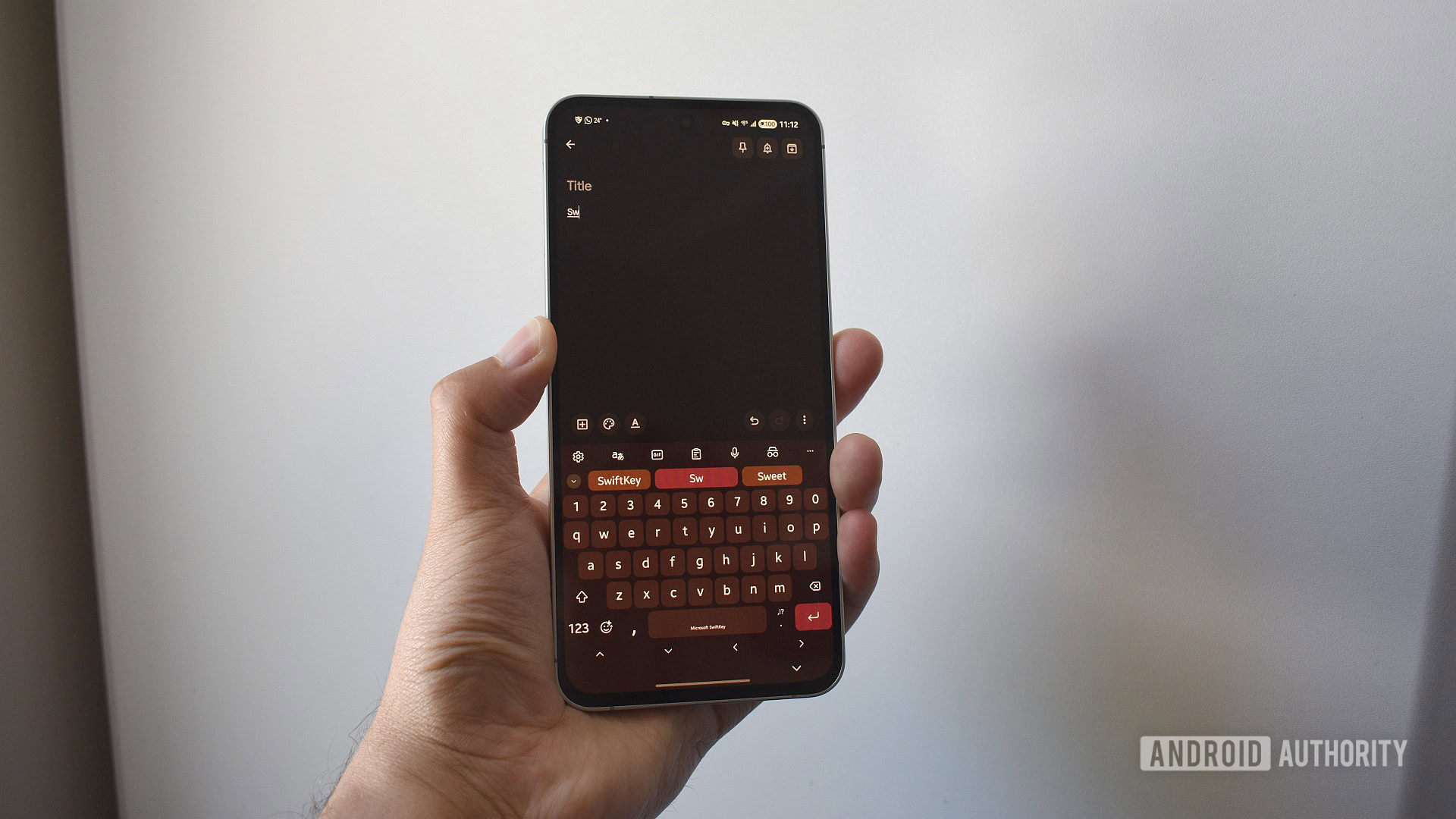
Andy Walker / Android Authority
TL;DR
- Microsoft will soon begin sunsetting third-party logins for SwiftKey backup.
- If you want the keyboard to store your personal dictionary files and sync them across devices, you must now use a Microsoft account.
- If you already use a different login, such as Google or Apple, your data will be deleted unless you back it up by tomorrow.
For months, Microsoft has been advising SwiftKey users to switch to OneDrive-based backup. The final deadline set by the software giant is May 31, i.e., which is tomorrow. And although the deadline for this transition has been sliding, Microsoft does not seem keen on another extension.
That’s why it’s ideal that you switch to logging in using a Microsoft account. While the keyboard will continue to work as usual, you will lose any data associated with your typing.
Don’t want to miss the best from Android Authority?


According to Microsoft’s support page, the said data contains your personal dictionary, or the set of custom words (or non-words) you’ve typed using the SwiftKey keyboard that it has saved, as well as a prediction model that is customized based on your personal dictionary. That could be especially valuable if you use swipe gestures to type quickly, something SwiftKey has mastered over the past 15-plus years.
If you don’t switch before tomorrow, you will also lose access to the “Backup & Sync” option in the keyboard.
How to transfer your SwiftKey from Google or Apple to a Microsoft account?
The process of switching over to a Microsoft account isn’t tedious. But to make it simpler for you, here are the steps:
- Head to the Microsoft SwiftKey data portal on a web browser. You can also access this on your phone by going to SwiftKey’s settings and then tapping Account > View and manage your data.
- Select the existing account provider, such as Google or Apple.
- Tap View data, where you will see the entire list of words in your personalized directory.
- You can make a note manually, but the preferred method would be to use the Export all option.
- Wait for the download to finish, and keep the file handy.
- If you don’t already have a Microsoft account, create one.
- Log in to OneDrive using your Microsoft account, and go to Apps > SwiftKey.
- Upload the previously saved file here.
- Go back to SwiftKey on your phone, open its settings, and log in with your Microsoft account.
- Your uploaded personal dictionary should be here. If you don’t see personalized recommendations, check the file in OneDrive under Apps > SwiftKey, and update it manually.
Microsoft’s act of forcing users can undoubtedly seem annoying. But if you resort to switching, Microsoft will give you the opportunity to earn up to 1,000 Reward Points that you can use at certain online stores, for Xbox discounts, or to donate to a charity of your choice.
Thank you for being part of our community. Read our Comment Policy before posting.


