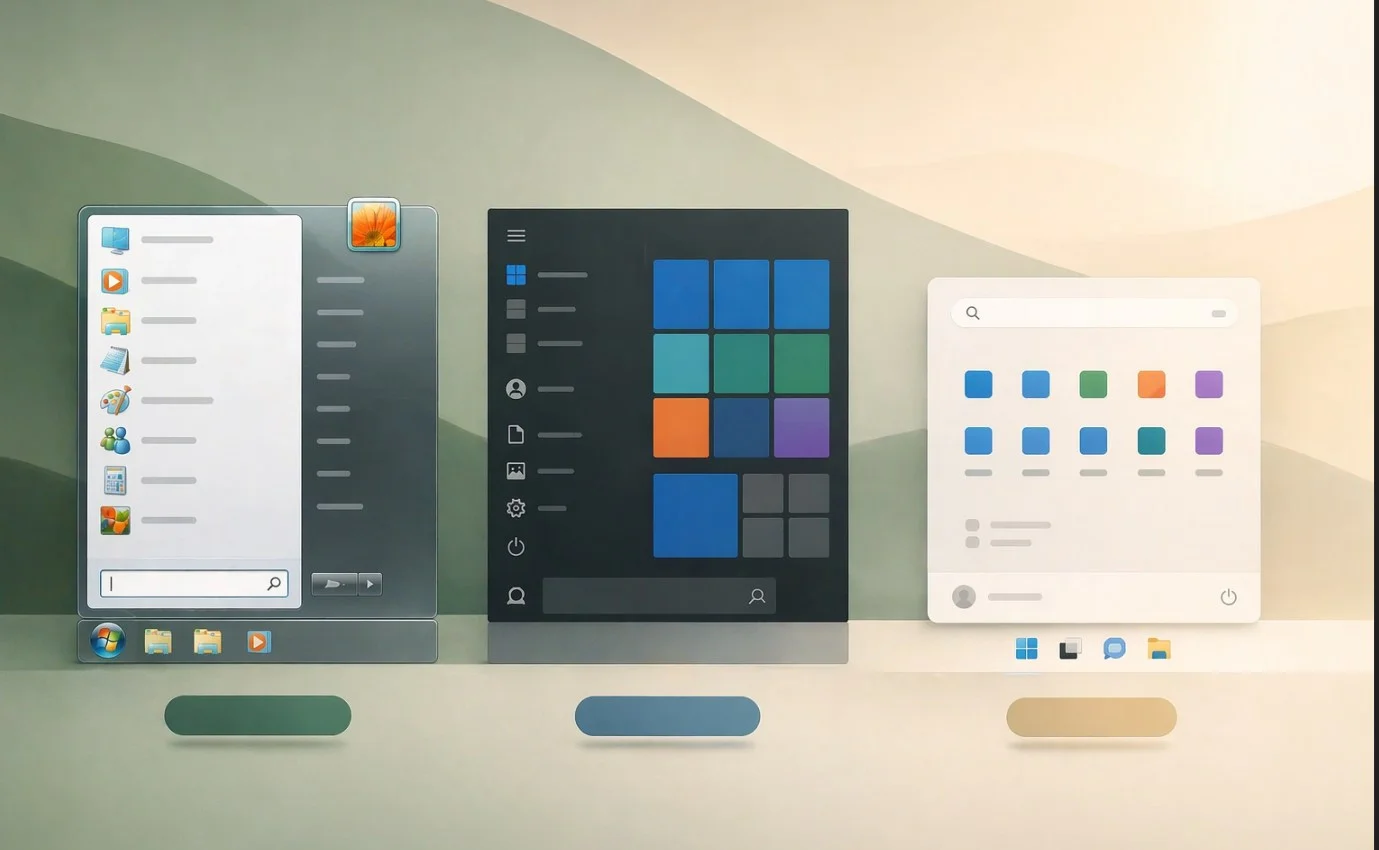
Microsoft’s 25H2 update gave the Start menu a redesign that nobody on my timeline asked for — a bigger pinned area, a scrollable all-apps grid, and the Phone Link panel eating a significant space by default. If you’re on a 1080p laptop, the new menu can swallow nearly the entire vertical screen. For some people, it’s a non-issue. For me, after three weeks of trying it on my Windows 11 Pro 25H2 machine, I went looking for a replacement.
I tested the three open-source options that actually matter in 2026, at least for me, and they are Open–Shell, ExplorerPatcher, and Windhawk. Each one solves a different problem. One of them, in my opinion, is clearly the best general-purpose pick — and one of them isn’t really a Start menu replacement at all but solves the 25H2 problem better than the others. Here’s what worked, what broke, and which one I’d recommend depending on what you actually want.
I also cover where Stardock’s Start11 fits in, because the honest answer is that the paid option still wins on a couple of things, and pretending otherwise wastes your time.
A quick clarification, because the category has blurred. There are three different things you might want:
A classic-style Start menu — a Windows 7 or XP-style cascading menu that replaces Microsoft’s tile-based design entirely. Open-Shell is the pure example.
A Windows 10 restoration — bring back the Windows 10 Start menu and taskbar on Windows 11. ExplorerPatcher is the dominant tool here.
A modification of the existing Windows 11 Start menu — keep the modern menu but shrink it, restyle it, hide sections you don’t use, fix the things 25H2 broke. Windhawk does this through a marketplace of community mods.
If you’ve been searching for “Start menu replacement,” hoping to make the new 25H2 menu less aggressive without abandoning it, what you actually want is option three, given in this article. Most articles bury this distinction. It matters because the wrong tool for your use case will either do too much or not enough.
1. Open-Shell — the classic choice with real 25H2 caveats
Open-Shell is the spiritual successor to Classic Shell, the one most long-time Windows users already know. Free, open-source, GitHub-hosted, no telemetry, no ads. Current version as of writing is 4.4.196.
Installation is straightforward. Download the installer from the page (not openshellmenu.com, which is a third-party fan site that’s been mistaken for official), run it, pick which components you want (just Classic Start Menu is fine — skip Classic Explorer and Classic IE unless you specifically need them), and you’re done.
First launch drops you into the settings panel, where you pick Classic, Two Columns, or Windows 7 style.
Where it shines. The Windows 7 style is unmatched if that’s the era you’re nostalgic for. Customisation is deep — every menu item, every keyboard shortcut, every visual tweak is exposed. The footprint is tiny, around 5MB of RAM in my testing.

Windows Classic Style menu with two columns

Classic Style Windows Start menu on Windows 11:

The 25H2 reality check. This is where I have to be honest about something the older guides skip. Open-Shell on 25H2 has real, current bugs. On my machine, I hit two of them:
The first was the “settings load” freeze — when you import or save settings as XML, Explorer locks up if you click on any drive or folder in the file picker. A workaround is to type the path manually instead of browsing, but it’s a poor first impression.
The second is a known issue tied to KB5068861 (a 25H2 cumulative update from earlier this year), where Open-Shell stops working entirely after a reboot. The Start menu just doesn’t open. Several users reported this on the project’s GitHub discussions, and the only reliable fix is uninstalling Open-Shell, which obviously defeats the purpose. As of my testing, my build (26220.7653) didn’t trigger this specific bug, but the fact that a single Windows update can brick the tool until the maintainers patch it is the broader pattern.
Open-Shell is also showing its age in places. The classic explorer command bar that older versions could restore no longer works in recent 25H2 builds — Microsoft removed the underlying APIs the tool depended on.
Verdict. Use Open-Shell if you specifically want a Windows 7 or XP-style menu and you’re willing to live with the occasional update-related breakage. For anything else, the other two options are stronger in 2026.
If your real goal is “give me back the Windows 10 Start menu and taskbar on Windows 11,” ExplorerPatcher is the tool. It’s not strictly a Start menu replacement — it patches Explorer to restore the entire Windows 10 shell, including the centred or left-aligned taskbar with labels, the old context menus, the proper Alt+Tab, and the Windows 10 Start menu as a complete restoration.

Maintained primarily by valinet on GitHub, with active community contributors keeping it current with each Windows feature update. Installation is a single dxgi.dll injection — download from the official GitHub releases page (and only from there, since fake “ExplorerPatcher” downloads on third-party sites have been caught carrying malware), run the installer, and Explorer restarts with the Windows 10 shell intact.

Two important updates from older guides. First, Windows Defender no longer flags ExplorerPatcher as unwanted software. That changed earlier this year. You’ll still need to add exclusions for some third-party antivirus tools (the README on GitHub lists them), but the days of fighting Defender SmartScreen on every install are over.
Second, ExplorerPatcher’s 25H2 compatibility took a few weeks to stabilise after the 25H2 release, but the current builds work cleanly on stable 25H2. The release notes explicitly list the OS builds tested, which is a level of transparency I wish more projects had. The project has had to chase Microsoft through 25H2 cumulative updates, but the maintainers are responsive — most breakages get a fix within days.
The catch you need to know. When Microsoft pushes a Windows feature update — like a hypothetical 27H1 next year — ExplorerPatcher must be uninstalled before the update will install. It’s not optional. The Windows installer detects the patch and refuses to proceed. Most of the time, this works fine, but I’ve seen reports on GitHub where the “ExplorerPatcher must be uninstalled” warning persists even after a clean uninstall, requiring registry cleanup. Plan for occasional friction at major version transitions.
Verdict. ExplorerPatcher is the right tool if your problem is specifically “I miss Windows 10.” Nothing else comes close to the completeness of the restoration. The trade-off is the ongoing maintenance dance with Windows updates, but for users who want what they had before, that’s a fair price.
Windhawk — the surprise winner for most people
This is the one I didn’t expect to recommend. Windhawk isn’t a Start menu replacement in the traditional sense — it’s a customisation platform that lets you install community-built “mods” that modify Windows behaviour at a system level. The mods relevant to Start menu users are called “Windows 11 Start Menu Styler” and “Start Menu Size.” But it is quite good and offers wide style options compared to the other two listed in this article, therefore, even though I don’t, it is one of the best open source application whne it comes to replacing the default Windows 11 Start menu.
Built by Michael Maltsev (m417z) of Ramen Software — the same developer behind 7+ Taskbar Tweaker, which is a known quantity in the Windows modding world. Free, open-source, GitHub-hosted, and the mod marketplace is curated rather than wild-west.
Installation is simple. Download Windhawk from windhawk.net or its GitHub page, install, launch, click Explore in the upper–right corner, and search for the mod you want.
“Start Menu Size” is the one that does the single most useful thing — lets you set the dimensions of the 25H2 Start menu manually. I set mine to 600 by 600 pixels, and the menu went from eating most of my screen to feeling like the Windows 11 menu I actually wanted from the beginning.
I also tried Windows 11 Start Menu Styler because here we are talking about Start Menu replacement options.

Why is this the best general-purpose pick in 2026?
Windhawk solves the problem most 25H2 users actually have, which is not “I want a different Start menu” but “I want the existing Start menu to stop being so big.” For that specific job, Open-Shell and ExplorerPatcher are massive overkill — you’re swapping out a whole component when all you needed was a size adjustment.
Windhawk also has the lightest footprint, the most active mod ecosystem, and the cleanest update model. Mods auto-update through the platform. When Microsoft changes something in a cumulative update, the mods break briefly, but the community usually patches them within a few days, and the whole process is more transparent than with Open-Shell or ExplorerPatcher.
A few Windows 11 options I have tried using Windhawk, here are the screenshots:
Windows 10 Start Menu for Windows 11:

Windows 10 Metro Style but Minimal design.

Custom TimeGlass layout for Windows 11 Start menu with a clean and transparent look.

RosePine is the custom Windows 11 style I tested on Windhawk, and it is good for those who want to show only a few icons or shortcuts on the Start menu, especially if the Menu size matters for them.

The honest trade-off. Windhawk works through DLL injection, which sounds alarming and is exactly the technique antivirus heuristics flag. Some enterprise antivirus tools mark it as a potentially unwanted program. The developer is reputable, and the source is public, but if you’re on a managed work device, this isn’t the tool for you. There’s also a slight Start menu open delay — 100 to 200ms in benchmarks — which I genuinely could not perceive, but should be mentioned.
Verdict and overall pick. Windhawk is the one I’d recommend to most people, and the one I left installed on my own machine after testing. It does the least to your system, solves the actual 25H2 problem, and gives you a path to other useful mods (the “Middle click to close on the Taskbar” mod alone changed how I use Windows). For a 25H2 user in 2026 who just wants the Start menu to be less aggressive, this is the answer.
Where Stardock’s Start11 still wins?
Honest comparison time, because pretending Start11 doesn’t exist makes this article worse. Stardock’s Start11 v2 is a paid tool, currently $5.99 for a single license. It’s not open source, which is a real downside for the audience reading this article. But it does three things the open-source tools don’t:
It survives Windows feature updates without manual intervention. Stardock ships compatibility patches before public Windows updates roll out, so Start11 users rarely hit the breakage cycle that ExplorerPatcher and Open-Shell users live with.
It has a polished settings interface that doesn’t look like it was designed in 2008. Open-Shell’s configuration panel works but is genuinely intimidating to a casual user.

It has actual support. If something breaks, you can email Stardock and get a response. With the open-source tools you’re posting on GitHub and waiting.
If those things matter to you and $5.99 isn’t a meaningful expense, Start11 is a defensible choice. If you specifically value open source, want zero ongoing cost, or like the modding flexibility of Windhawk, stick with the free options.
What to install: my recommendation
Most readers should install Windhawk and the Start Menu Size mod. It solves the actual 25H2 Start menu problem with the least disruption to your system, has the most active maintenance, and opens the door to other useful Windows tweaks if you want them later.
Install ExplorerPatcher if you want the full Windows 10 shell back — taskbar, Start menu, context menus, the lot. Accept the upgrade-cycle friction in exchange for the most complete restoration available.
Install Open-Shell if you specifically want a Windows 7 or XP-style classic menu and the 25H2 quirks don’t bother you.
Avoid all three if you’re on a managed work machine, you don’t want to deal with occasional post-update breakage, or you’d rather pay a few dollars for Start11’s smoother experience.
Whichever you pick, install only one at a time. Stacking these tools causes Explorer to fight itself and produces hard-to-diagnose Start menu issues. If you want to try a different option, uninstall the previous one cleanly first, reboot, then install the new one.


